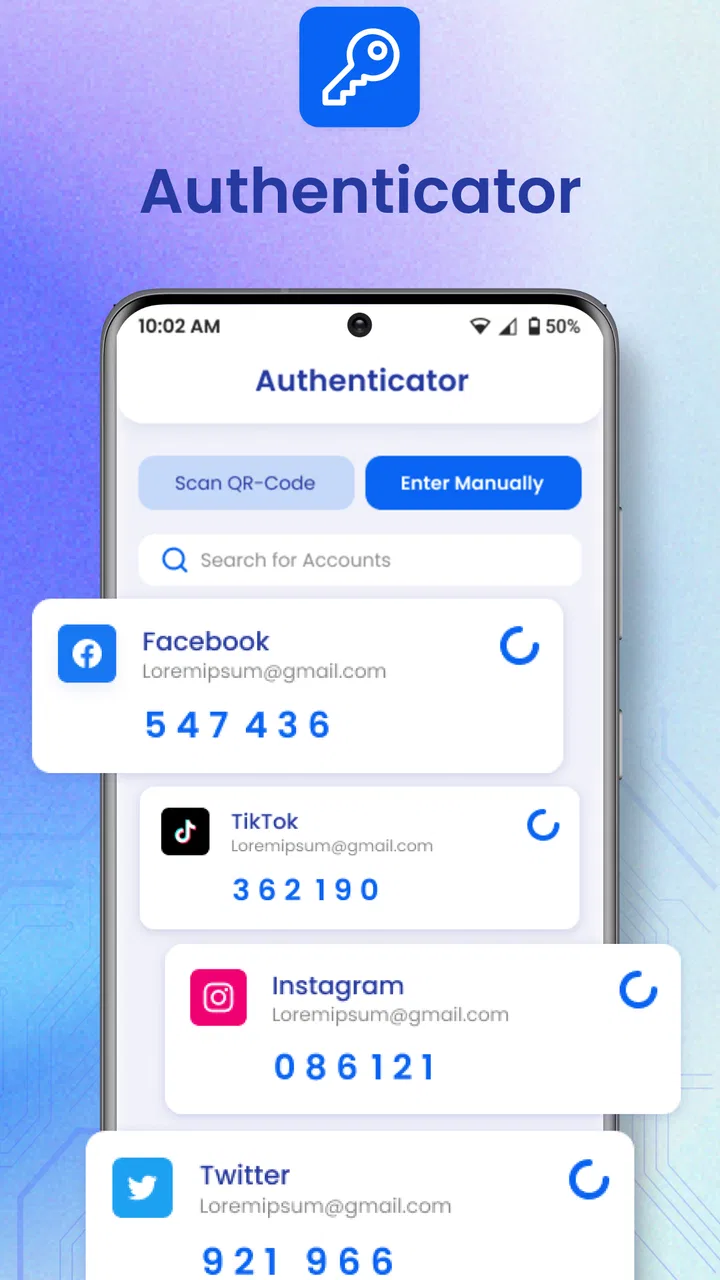
Authenticator 2FA OTP Backup
- 4.2
- Rating
- 1.00M
- Installs
- Free
- Price

 Analysis by App-foxy
Getting locked out of an account is one of those problems that always seems to happen at the worst possible moment. A login may ask for a code while I am travelling, changing phones, or trying to recover access to an important service. Authenticator 2FA OTP Backup is designed for that specific part of digital life: it helps generate one-time verification codes and supports private two-factor login with OTP and TOTP methods. I found it most useful when I wanted a separate place for authentication codes instead of relying on text messages.
This is a free House & Home app from Duong Van Luong, although it includes optional in-app purchases ranging from $5.99 to $29.99 per item. Its store summary focuses on securing accounts with OTP codes, TOTP and private two-factor authentication. That makes it a practical utility rather than a general password manager or a social app. The age rating is Everyone, and the app runs on Android 7.0 or later.
The important thing to understand before installing it is that an authenticator does not replace your account password. It adds another checkpoint. You still need to protect the account itself, and you also need to think carefully about how you will recover your codes if your phone is lost or reset. Used with that mindset, this app can make everyday sign-ins safer without making them feel complicated.
You May Also Like

 Blood Strike: 2.5 Anniversary
Blood Strike’s Loadouts Turn Every Drop Into a Tactical Gamble
A close look at Blood Strike’s custom loadouts: how fast access to signature weapons reshapes its battle royale rhythm, rewards preparation, and narrows the gap between fights.

 Pandora - Music & Podcasts
Pandora’s Music Is Easy to Start, but Harder to Recover
Pandora’s strength is its low-effort path from a seed to a station. Its weak spot is how much confidence it asks you to place in connection, setup, and quiet recovery.

 8 Ball Pool
 Is Built on Rivalries, Rematches, and Routine
A close look at the rivalries, rematches, shared routines, and unanswered safety questions that turn a quick pool match into a persistent mobile community.

 Samsung Music
’s Quiet Strength Is Playing What You Already Own
Its reach comes less from spectacle than from dependable access to a personal library. That simplicity is both the app’s strongest retention engine and its ceiling.

 AccuWeather: Weather Radar
AccuWeather Review: A Quick, Clear Forecast for Everyday Decisions
For everyday plans, the best forecast is the one you can understand quickly. AccuWeather makes rain timing, radar, and local conditions easy to act on, with a few trade-offs.

 Hill Climb Racing
Why Hill Climb Racing Still Turns Crashes Into One More Run
A tiny car, a bumpy hill and one more upgrade: Hill Climb Racing keeps resurfacing because its simple chaos makes every near-miss feel personal.
More From Our News Desk
View All News


What to expect from Authenticator 2FA OTP Backup
On opening Authenticator 2FA OTP Backup, I would approach it as a focused code generator, not as a complete security suite. The core experience revolves around adding an account, producing a temporary code, and entering that code when another service asks for it. TOTP codes are generated from a shared secret and the current time, so they normally work without waiting for a text message. That is especially helpful when mobile reception is poor or when I do not want a login code travelling through SMS.
The app is aimed at people who are starting to use two-factor authentication and want a dedicated tool on their phone. It can also suit someone managing several personal accounts, provided they are comfortable organizing those entries and maintaining a recovery plan. The audience size suggests that it is not an obscure experiment: the listing shows over one million installs and a 4.2 average from around 58 thousand ratings. Those figures do not guarantee that it will suit every workflow, but they do indicate that many Android users are using this kind of tool.
The current version is 2.5.22. I would still check the app screen on the device before beginning a migration, because authenticator apps are sensitive to changes in layout and backup behavior. A small difference in where an import or recovery option appears can matter when a person is replacing a phone in a hurry.
Compared with receiving codes by SMS, a TOTP app is usually quicker and less dependent on a carrier. Compared with a full password manager that includes an authenticator, this app is narrower and may feel easier if I only want codes. The trade-off is that a dedicated authenticator does not automatically give me the broader password storage, autofill, and account-management workflow that a password manager may provide.
Who will benefit most from it
I think it is a good fit for a first-time two-factor user who wants to move beyond text messages without learning an elaborate security system. It is also useful for someone who signs into email, shopping, work, or financial services from more than one device and wants codes available in one familiar location. The app is free to start, so the initial decision is relatively easy for a cautious user who wants to try an authenticator before committing to a larger security platform.
It is less suitable for a person who expects the app to recover every account automatically after a lost phone. That expectation is dangerous with any authenticator. Account recovery depends on the service being protected and on the backup method I prepared in advance. If I have not saved recovery codes or confirmed a transfer route, a new authenticator installation may not magically recreate the old entries.
Installing it without creating a false sense of security
After installing it on a compatible Android phone, I would first make sure the phone itself is protected with a screen lock. An authenticator is only as private as the device holding it. I would also avoid setting up every important account in one rushed session. Starting with one low-risk account makes it easier to understand the process and confirm that the generated code is accepted.
The app is free, but optional purchases are listed inside it. I would not buy anything merely because I am trying to complete the basic setup. First I would test the main code workflow and decide whether the available experience meets my needs. This is a useful habit with security tools: understand what is included before paying for an enhancement that may not solve the problem I actually have.
First setup: adding an account carefully
The usual starting point is the website or service where I want to enable two-factor authentication. In that service’s security settings, I would choose an authenticator or TOTP option. The service commonly presents a QR code or a setup key. The app then needs that information so it can create matching codes. I would keep both screens visible if possible, or use the service’s manual key when scanning is inconvenient.
The most important setup detail is accuracy. A single mistyped character in a manual key can produce codes that look perfectly normal but never work. When scanning is available, I would use it and then compare the account label afterward. If I must type the key, I would slow down and check similar-looking characters rather than assuming the first attempt failed because of timing.
Once the entry is added, I would return to the service and enter the current code shown by the app. This is the first meaningful success: the account accepts the code, and two-factor protection is active. I would not close the service’s setup page until that test succeeds. Activating protection without verifying the code can leave me needing recovery steps immediately.
One practical tip is to set up the account while the phone has the correct date and time. TOTP depends on time alignment. If the phone clock is significantly wrong, a valid secret can still generate a code that the service rejects. This is not a flaw unique to this app; it is a basic condition of time-based authentication. When a code fails, checking time settings is more sensible than repeatedly deleting and recreating the account.
The first successful login
After the service accepts the initial code, I would sign out and perform a normal login while the process is still fresh. This confirms that I know where the entry is, how to copy or read the code, and when the code changes. It also reveals whether the service asks for the code on every login or only in certain situations, such as a new device.
Codes are temporary, so I would avoid starting the login and then leaving the phone untouched for a long time. If the code changes while I am entering it, I would wait for the next one and type that fresh value. A rejected code does not automatically mean the account is broken. Timing, a wrong account entry, or a setup key copied incorrectly are more likely explanations during a first attempt.
For a realistic example, imagine that I am signing into email at an airport using a laptop I have not used before. Instead of waiting for a carrier message, I open the authenticator on my phone, find the email entry, and enter the current TOTP code. If it works, the login is completed even when reception is unreliable. The useful part is not just speed; it is having a second factor that does not depend on the delivery of a text.
Organizing entries before the list becomes confusing
Adding one account is simple. Adding many accounts without a naming habit can become frustrating. I would keep labels recognizable, especially if I have several accounts with the same provider. A label such as a provider name alone may be ambiguous; adding a personal identifier can make the correct entry easier to spot. I would avoid putting sensitive information into labels because the phone screen may be visible to someone nearby.
This is one of the less obvious workflow choices that makes a real difference. The app can generate the right kind of code, but I still have to select the right account. A neat list reduces the chance of copying a code for one service into another service’s login. It also makes future troubleshooting much faster because I can identify which entry belongs to which account.
I would also add accounts gradually and test each one immediately. That creates a simple audit trail: if the third account fails, I know which setup caused the problem. Adding ten accounts at once and testing them only after changing phones makes it much harder to locate a bad key or incomplete activation.
Common confusion and how I would handle it
The most common misunderstanding is treating OTP, TOTP, and SMS codes as interchangeable. They all involve one-time codes, but the delivery and generation process can differ. A TOTP entry in an authenticator normally creates codes locally from a secret and time. An SMS code is sent by a service through a mobile network. If a website specifically asks for a text message, an authenticator entry may not satisfy that prompt.
Another source of confusion is expecting the app to display a code for an account before that account has been linked. The app cannot guess a service’s secret. I need to enable two-factor authentication with the service first, then add the supplied setup information. If I delete an entry, I should treat that as a serious action and confirm that I still have a recovery route before removing it.
When a code is rejected, I would work through the problem in a calm order. First, check that I selected the correct account. Next, verify that the phone’s time is set correctly. Then try the newest code rather than one near expiration. If the problem continues, I would revisit the service’s two-factor settings and compare the setup entry with the original key. Repeatedly requesting new codes from the service can make the situation harder to understand.
A further issue appears when changing phones. Installing the app on the new device is not the same as transferring the protected accounts. Before wiping the old phone, I would use the account provider’s approved transfer or re-enrollment process and save recovery codes where the provider offers them. I would test the new phone before removing the old authenticator. This two-device overlap is a valuable safety margin during migration.
Backup deserves special attention because the word in the app’s name can lead users to assume that every code is automatically restorable. I would look closely at the app’s own backup and recovery controls, understand what they protect, and avoid assuming that a cloud backup is identical to a service’s recovery codes. For especially important accounts, I would keep the provider’s emergency codes in a secure offline location. The exact recovery path belongs to the account provider, not just to the authenticator.
Privacy and everyday handling
An authenticator contains information that can help unlock other accounts, so I would treat the phone like a key ring. I would not take screenshots of setup secrets, send them through chat, or leave QR codes visible in a public place. During setup, the QR code is often the most sensitive part of the process. Once the service is linked and tested, I would close the setup page and store any recovery material securely.
I would also be careful when copying a code. Clipboard contents can sometimes be exposed by other applications, depending on the device and operating system. Reading the code directly is preferable when practical. If I copy it, I would paste it promptly and avoid leaving the code in the clipboard longer than necessary.
These habits are not glamorous, but they are where much of the real security benefit comes from. An authenticator can make the second step stronger than SMS, yet careless handling of setup keys or recovery codes can undermine that advantage. The app is a tool; the surrounding routine determines how well it protects me.
When another option makes more sense
I would choose a broader password manager when I want passwords, passkeys, secure notes, autofill, and TOTP codes managed in one integrated system. That approach can reduce the number of separate apps I use, although it also concentrates more sensitive information in one place. For someone already committed to a password manager, adding another authenticator may create unnecessary duplication.
I would consider a hardware security key for accounts that protect valuable business data or for a user who wants phishing-resistant authentication. TOTP is a strong improvement over password-only access, but it still involves typing a code into a website. A physical security key can offer a different security model and may be preferable for high-risk accounts, even if it costs more and requires carrying another device.
SMS may remain the easiest choice for a relative who struggles with app setup, but I would view it as a convenience fallback rather than the strongest everyday method. Authenticator 2FA OTP Backup is a better fit for someone willing to complete a short setup and maintain recovery information. It is not the best answer for a person who refuses to manage account migration or who needs a complete password-management system.
The app’s private two-factor focus is appealing because it keeps the task narrow. That narrowness is also its main limitation. I would not install it expecting account discovery, automatic protection of every service, or a replacement for careful security decisions. Its value comes from doing one job directly: helping me produce authentication codes when a supported account requests them.
My next-step recommendation for a new user
I would begin with one account that matters but is not the account I rely on for recovering everything else. Enable TOTP on that service, add it to the app, complete the confirmation code, sign out, and perform one fresh login. Then locate the service’s recovery codes and store them safely. Only after that successful trial would I add email, financial, work, or other high-impact accounts.
Once several entries are present, I would review the list and make sure every label is understandable. I would test the most important account from a second device or browser, without deleting the original setup. That exercise answers a question many new users postpone: can I actually complete the login when I am not using my usual device?
My overall view is positive for the right audience. Authenticator 2FA OTP Backup offers a straightforward route into code-based two-factor authentication, is free to begin, and supports the OTP and TOTP workflow most people expect from this category. Its 4.2 average and broad install base make it a reasonable app to investigate, while the optional paid items mean I would evaluate the free experience before spending anything.
I would recommend it to a first-time Android user who wants more dependable account verification than SMS and is prepared to take responsibility for backups and recovery. I would skip it in favor of a password manager or hardware key when my needs extend beyond code generation. For everyone else, the best first step is simple: protect one account, verify one successful login, and build from there rather than trying to secure your entire digital life in a single rushed session.
FAQs for Authenticator 2FA OTP Backup
01What is Authenticator 2FA OTP Backup used for?
Authenticator 2FA OTP Backup is designed to generate time-based one-time passwords (TOTP) for two-factor authentication. After you connect it to supported online accounts by scanning a QR code or entering a setup key, the app produces temporary verification codes needed during login. It can help protect accounts even when someone knows your password, because the code changes regularly.
02How do I add an account to Authenticator 2FA OTP Backup?
To add an account, open the security settings of the service you want to protect and enable two-factor authentication. Choose the authenticator-app option, then scan the displayed QR code with the app or enter the provided setup key manually. Before finishing, compare the generated code with the service’s confirmation code. Keep the original recovery information in a safe place.
03Does Authenticator 2FA OTP Backup work without an internet connection?
In most cases, the app can generate TOTP verification codes without an active internet connection, which is useful when traveling or when mobile coverage is unavailable. The codes are created from the stored secret and your device’s current time. However, accurate date and time settings are important, and some account services may still require internet access for the actual login.
04Can I restore my authenticator accounts after changing or losing my phone?
The ability to restore accounts depends on how the app’s backup feature is configured and whether you created a backup before replacing or losing your device. You should review the available backup and recovery options immediately after setup, and store recovery keys separately. Do not assume that installing the app on a new phone will automatically recover every account.
05Is Authenticator 2FA OTP Backup safe to use, and what should I consider before installing it?
An authenticator app protects access by storing the secret keys that generate your login codes, so device security is especially important. Use a screen lock, keep your operating system updated, and download the app only from an official store. Check its requested permissions and backup policy carefully, because cloud or file backups may introduce privacy considerations if they are not properly protected.
Pros
- Supports secure two-factor authentication with time-based OTP codes.
- Backup options help protect access when changing or losing devices.
- Simple interface makes adding and managing accounts straightforward.
- Works offline once accounts are configured
- without requiring mobile data.
- Useful for securing email
- social media
- banking
- and other online accounts.
Cons
- Restoring backups may require careful setup and access to the original backup data.
- Losing the device and backup can make account recovery difficult.
- Some services may require manual QR scanning or secret-key entry.
- The app’s security depends heavily on protecting the backup and device access.
- Not every website supports the same OTP setup or recovery process.

Authenticator 2FA OTP Backup
Gallery